SQL console
The query console is where you write and run SQL. Each console is a tab with its own database session, so a long-running query in one console never blocks browsing the schema or working in another console.
Shortcuts use macOS symbols; on Linux and Windows, ⌘ is Ctrl and ⌥ is Alt.
Open a console
- Press
⌘⇧L, or click QL in the Database Explorer header. - Choose Open New Query Console in the DBeast menu or in Find Action (
⌘⇧A). - Use a database's context menu in the Database Explorer to open a console in that database (see Database Explorer).
The console toolbar, from left to right:
| Control | Purpose |
|---|---|
| ▶ Execute | Run the statement under the caret or the selection (⌘↵). |
| Explain Plan, Explain Actions ⏷ | Show the query plan (see Query plans). |
| ▶▶ Execute Script | Run the whole script (⌘⇧↵). |
| ■ Stop | Cancel the running statement (⌘F2). |
| Tx: Auto / Tx: Manual | Transaction mode. |
| Find | Find, Replace and Go to Line/Column. |
| Format | Reformat SQL (⌥⌘L). |
| History | Statements previously run on this data source. |
| Default schema | Schema (PostgreSQL) or database (MySQL) for this console. |
| Data source, database | Where the console runs. |
In a narrow window, less frequently used actions move to the More Console Actions (…) menu. The data source and schema selectors always keep their place.
Run SQL
Statement under the caret
Press ⌘↵ or click ▶ to run the statement under the caret. That statement has a green outline from its first to its last character, so you always see what will run.
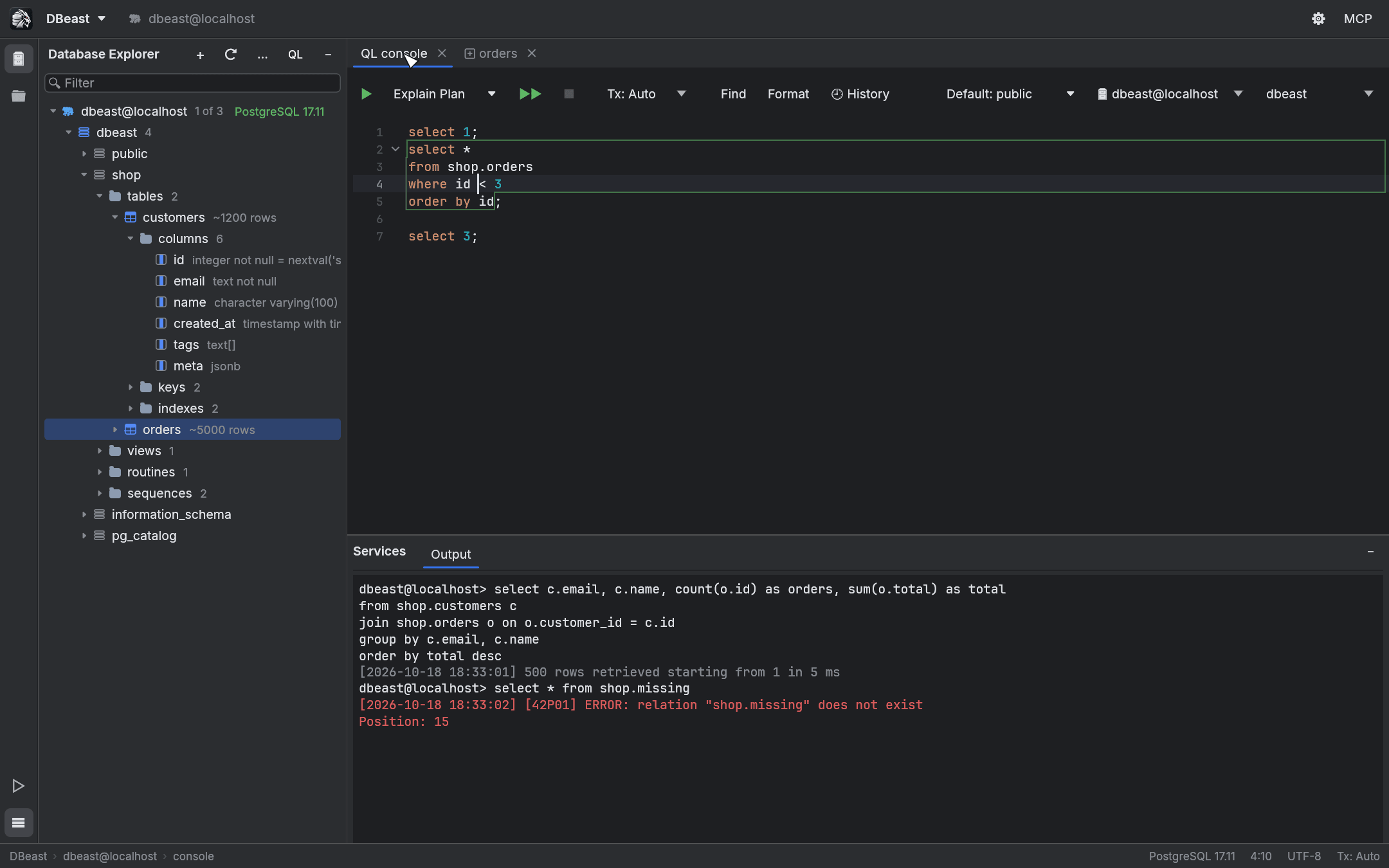
If you select text, the outline disappears and ⌘↵ runs exactly the selection.
Whole script
Press ⌘⇧↵ or click ▶▶ to run every statement in the console from top to bottom. Execution stops at the first error.
DBeast splits scripts into statements with awareness of each SQL dialect: string literals, quoted identifiers, comments (nested comments in PostgreSQL), PostgreSQL $tag$ bodies and E'...' strings, MySQL DELIMITER, SQLite trigger bodies and semicolons inside parentheses are all handled correctly.
Results
Query results open as tabs in the Services tool window, next to Output. Results are fetched in pages of 500 rows by default. See Results grid.
Each result remembers the data source, database and schema it came from, and the server context confirmed after execution. If you change the console's data source, database or schema afterwards, Reload and fetching the next page refuse to run until you switch back or run the SQL again. Context changes made with SET or USE in SQL are detected too.
Stop a running statement
Press ⌘F2 or click ■ to cancel the running statement. DBeast sends a cancel request to the server (PostgreSQL cancel request, MySQL KILL QUERY, SQLite interrupt), closes the console session and unlocks the console.
Warning
After Stop, the outcome of the statement may be unknown, and an open manual transaction is lost. Disconnect and reconnect the data source before continuing, and verify any changes before retrying. DBeast never retries automatically. See Connection recovery.
Code completion
Completion suggests names based on where the caret is in the statement.
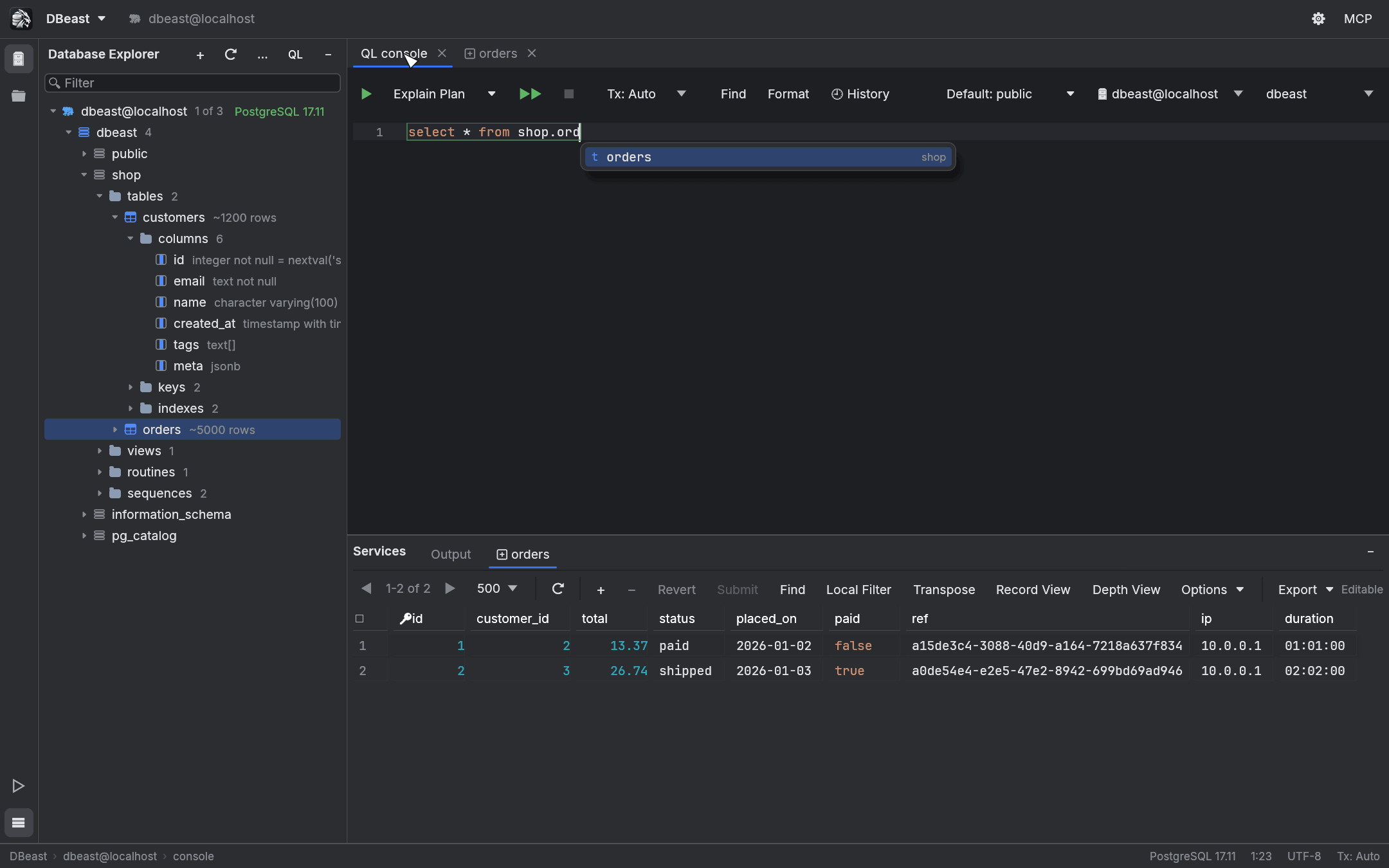
- After
FROM,JOINorUPDATE: tables and schemas. - After
alias.ortable.: columns of that table. Afterschema.: tables in that schema. - In
ORDER BYafter a column:ASC,DESC,NULLS FIRST. - In
WHEREafter a column: operators such asIS NULL,IN,LIKE; after a value:AND,OR.
Press Ctrl+Space to open the list (Ctrl on every system). Use the arrow keys to choose, Enter or Tab to insert, Escape to close.
Completion also works in the WHERE and ORDER BY fields of the table editor. Metadata is loaded in the background, once per data source (and per PostgreSQL database), on a short-lived connection of its own, so the Database Explorer can be expanded while it loads, and cached. Names of schemas and tables arrive first; columns follow, so on a large catalog table completion works before column completion. Unqualified names are resolved according to the schema search order confirmed for the console; tables outside that order, or hidden by a table of the same name earlier in the order, are inserted with a qualified name. Quoted identifiers and aliases keep their case. Refreshing the data source reloads the metadata.
Code folding
Fold markers (˅) in the gutter appear next to multi-line statements and the contents of parentheses (subqueries, CTEs, OVER (…)).
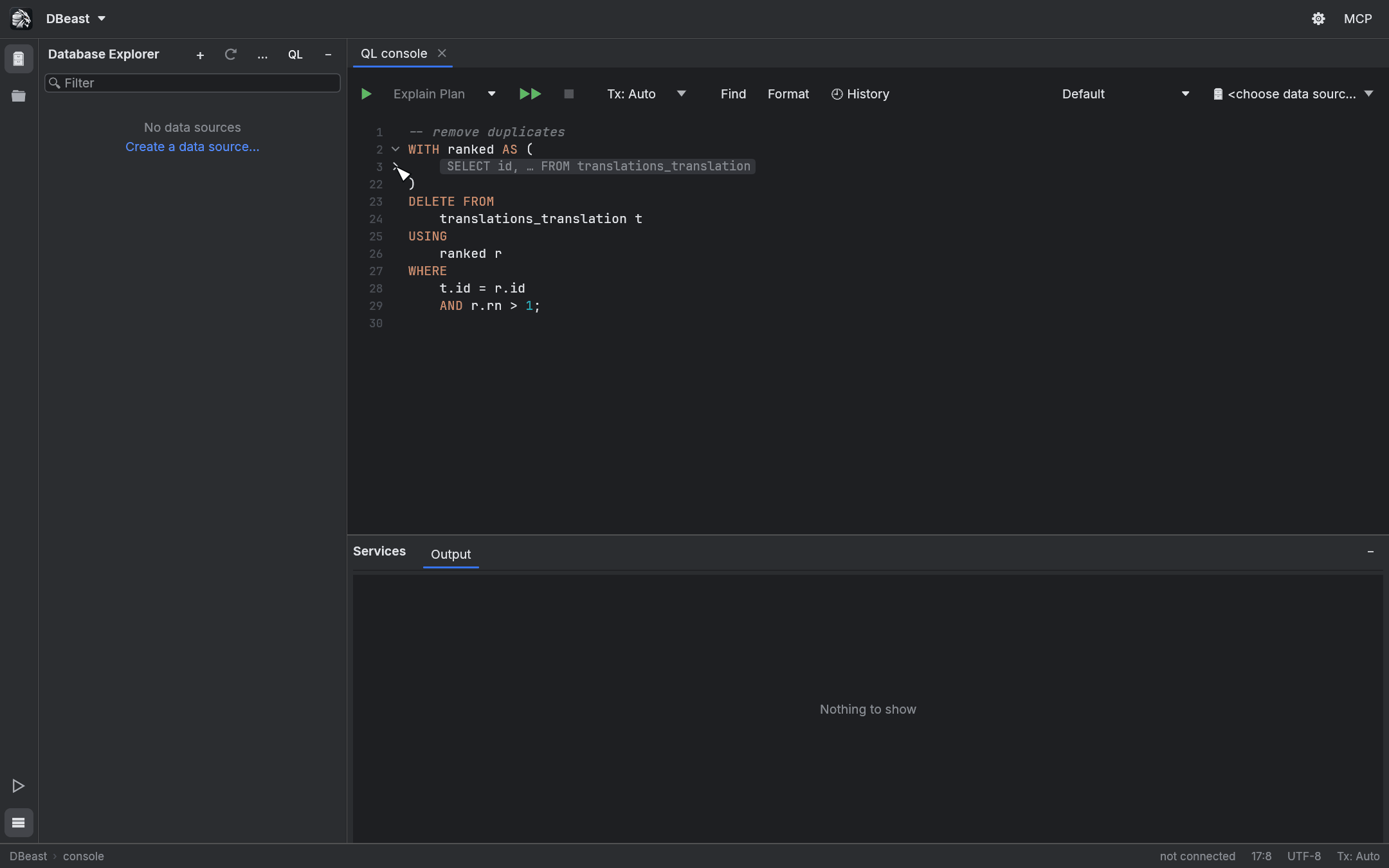
- A folded region shows a summary badge, such as
SELECT id, … FROM translations. Line numbers skip the hidden lines. - Click the badge or › to unfold.
⌘-/⌘=fold or unfold the region under the caret.⌘⇧-/⌘⇧=fold or unfold everything.
Execution, saving, history and copying always use the full text. Backspace or Delete on a folded region unfolds it instead of deleting the hidden text.
Format SQL
Click Format or press ⌥⌘L to format the selection, or the whole console when nothing is selected. The formatter:
- puts each clause keyword (
SELECT,FROM,WHERE,GROUP BY,ORDER BY,LIMIT,SET,VALUESand others) on its own line, with its content indented by 4 spaces below it; - puts each comma-separated list item and each
AND/ORcondition inWHEREandHAVINGon its own line (BETWEEN … AND …stays together); - indents
JOIN … ON …underFROMand putsUNION ALLon its own line; - formats subqueries and
OVER (…)as nested blocks, while function calls andIN (…)lists stay on one line; - uppercases reserved keywords only; function names and identifiers are left as they are;
- never touches literals, comments or
$$ … $$bodies.
Every result is compared with the original token by token. If formatting would change anything other than whitespace and keyword case, it is rejected and the SQL stays unchanged.
Find, Replace and Go to Line
| Shortcut | Action |
|---|---|
⌘F |
Open the find bar. Selected text fills the search field. |
⌘R |
Open the find bar with the replace field. |
⌘G / ⌘⇧G |
Next / previous match, wrapping around. Enter and Shift+Enter in the search field do the same. |
⌘L |
Go to Line/Column. |
| Escape | Close the find bar or the Go to dialog and return to the SQL. |
The same commands are in the Find menu on the console toolbar.
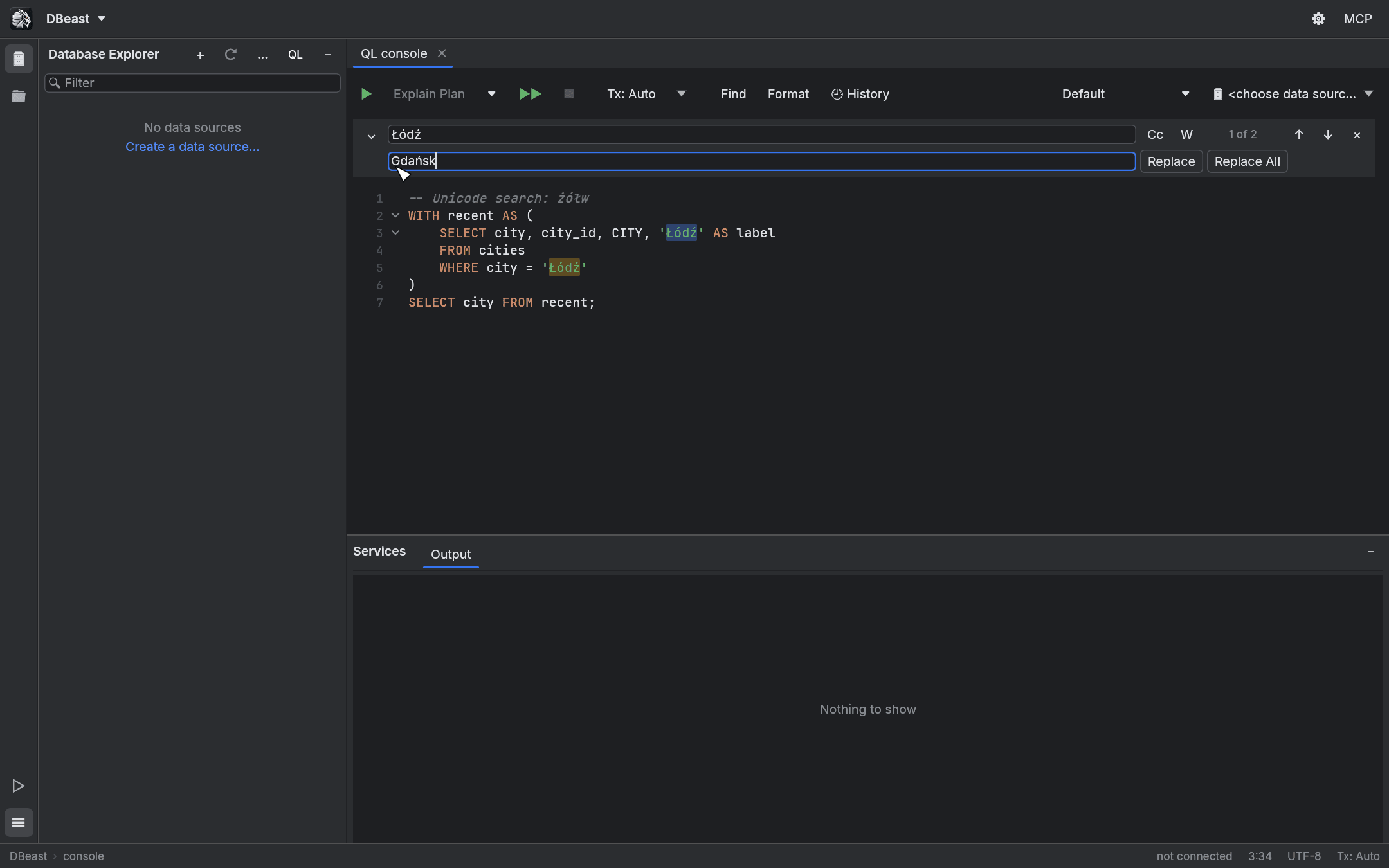
- Cc toggles Match Case and W toggles whole Words. The counter shows the current match and the total; all matches are highlighted.
- Replace replaces the current match, Replace All replaces every match in one undoable step.
- Replacement is literal:
$and backslashes have no special meaning. Regular expressions, search in selection and Preserve Case are not supported. - A match inside a folded region unfolds it and scrolls the editor to it.
- Case-insensitive matching uses Unicode lowercase, without full case folding (
ßdoes not matchss).
Go to Line/Column accepts a line number or line:column, counting from 1. A column past the end of the line stops at the end of the line; an invalid number keeps the dialog open with a message.
Undo and Redo
⌘Z undoes and ⌘⇧Z redoes changes in the console, including replacements and edits around folded code. Undo and Redo unfold the code so that the restored selection is visible. History is kept separately for each tab, in memory, until the tab is closed. Typing is grouped into one step until you pause for a second. A tab keeps up to 100 steps and up to 16 MiB of text; when a large script reaches that limit, the oldest steps are dropped, and the last step can always be undone.
Query history
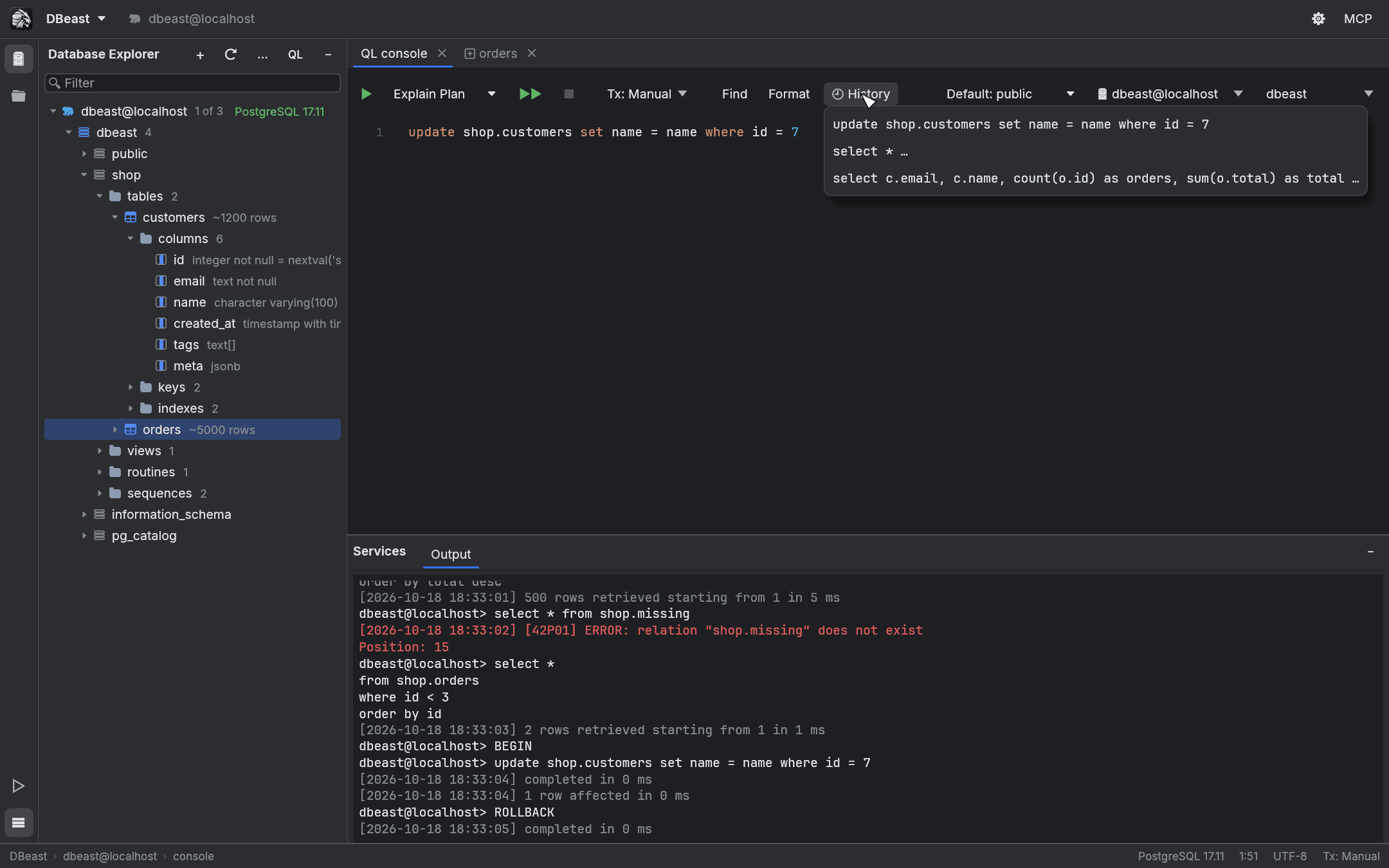
Every statement you run is remembered per data source (up to 300 entries; running the same statement again moves it to the top). Click History on the console toolbar to see the list. Choosing an entry appends it to the end of the console.
Filter history in the table editor
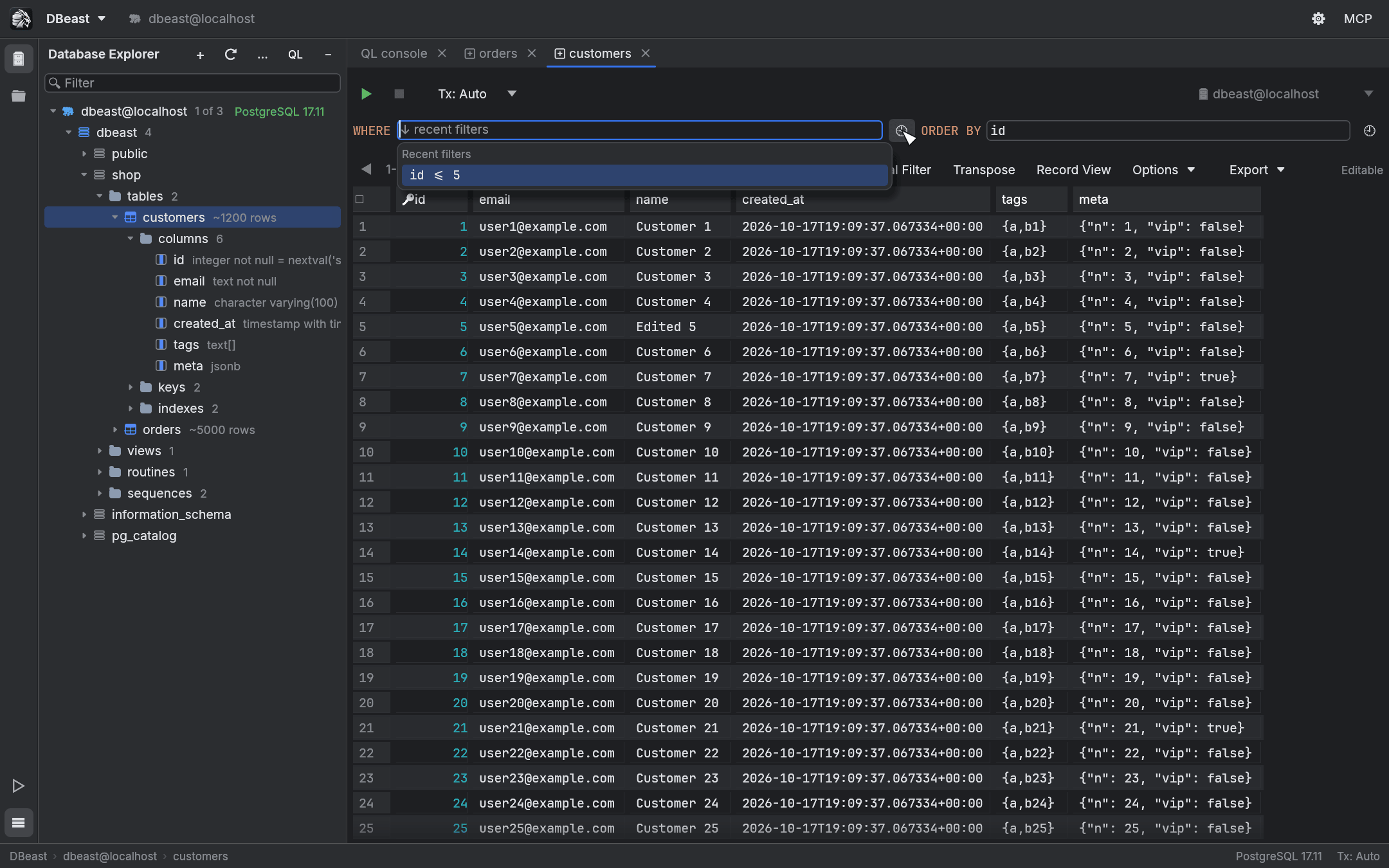
Double-clicking a table opens it in the table editor, which has WHERE and ORDER BY fields above the grid. Both fields remember the last 20 filters for each table. The list opens when you focus an empty field, press the down arrow, or click the 🕘 button. Choosing an entry applies the filter immediately.
Default schema per console
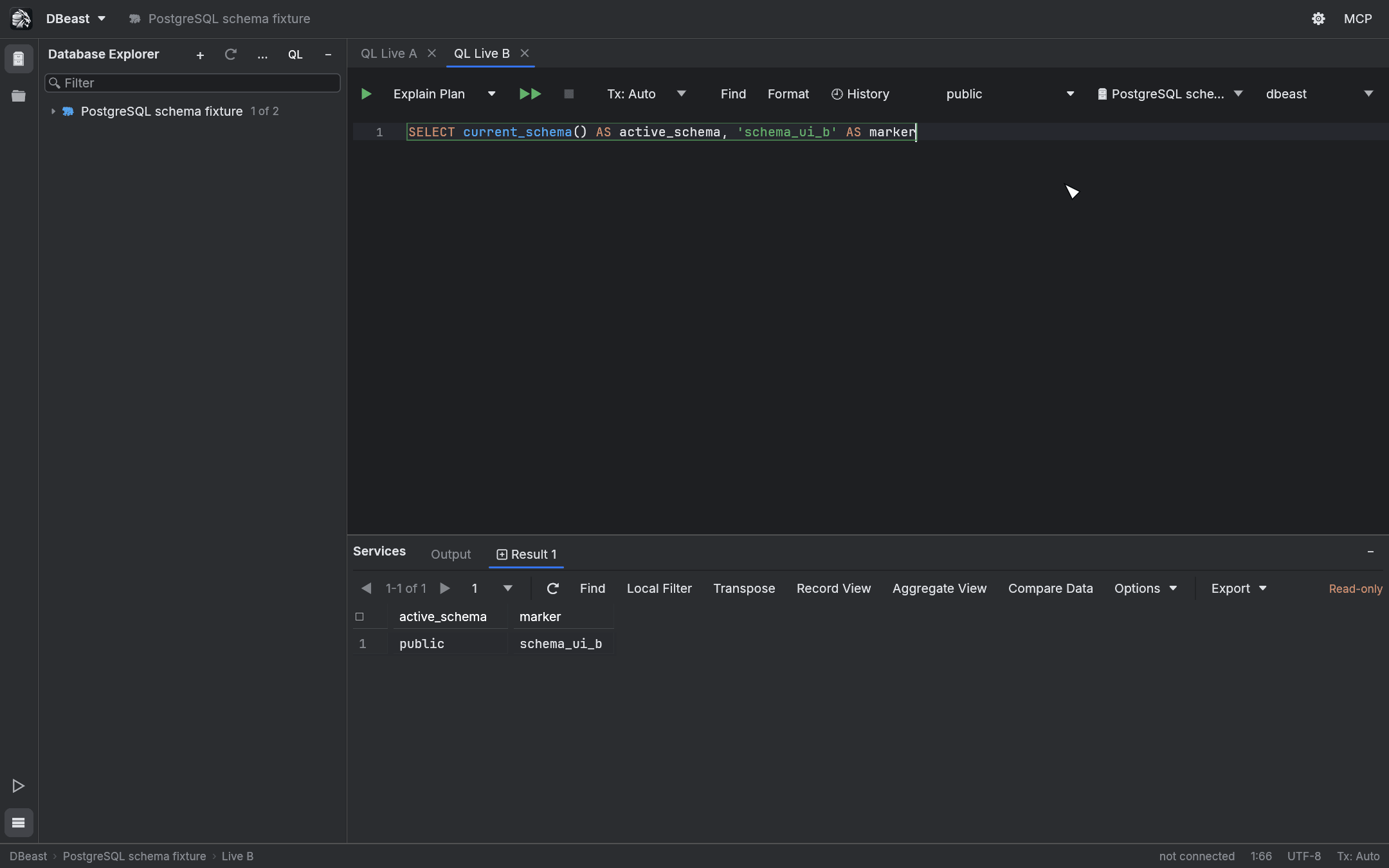
The Default schema selector on the console toolbar sets the current schema (PostgreSQL) or current database (MySQL) for that console only, on its existing connection.
- The list includes empty schemas and has a search field.
- Default restores the connection's real initial context, including a custom
search_path. - For SQLite the selector shows
mainand is disabled;tempand attached databases are available through qualified names. - The choice is saved with the configuration and the session. Restoring the window does not open a connection.
- Selecting the same data source or database again does not reset the schema or the caret.
- You cannot change the schema, data source or database while a query, transaction, file save or pending grid change is in progress. If the change fails, the previous selection stays.
Transactions
Choose the transaction mode in the Tx menu on the console toolbar:
| Mode | Behavior |
|---|---|
| Tx: Auto | Every statement is committed automatically. |
| Tx: Manual | The first statement opens a transaction. Commit and Rollback on the toolbar end it. |
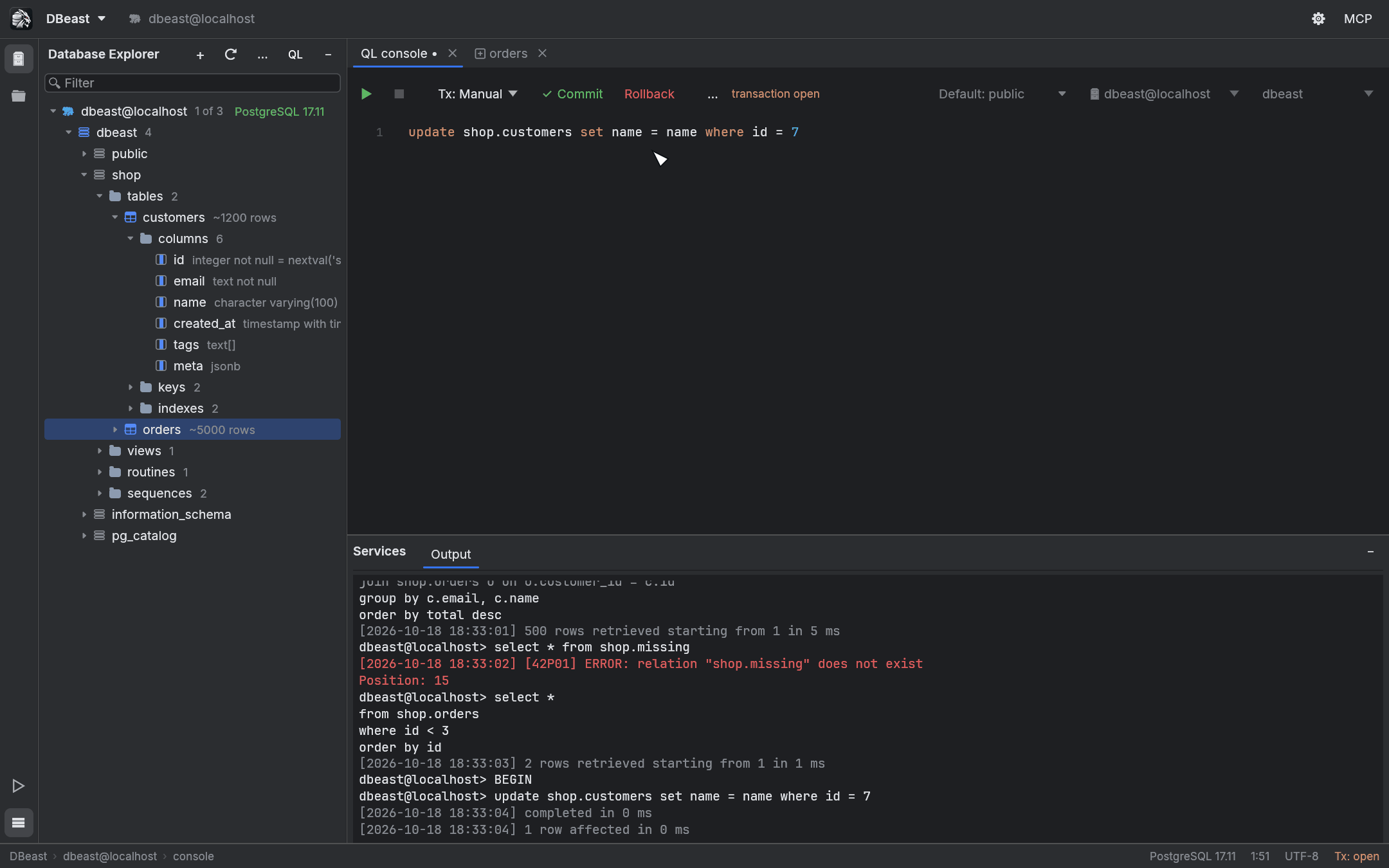
While a transaction is open, the console tab shows a dot after its name, the toolbar shows transaction open, and the status bar shows Tx: open. Closing the tab rolls the transaction back; DBeast warns you first.
The transaction indicator follows the server's real state after every statement. MySQL commits implicitly before DDL (CREATE, ALTER, DROP, TRUNCATE and similar statements), so:
- When such a statement commits a transaction that contained changes, the Output log says Transaction committed implicitly by this statement, and the console no longer shows an open transaction. Those changes can no longer be rolled back.
- In Tx: Manual, the next statement opens a new transaction, also in the middle of a script; the Output log notes it. Rollback therefore always undoes the changes made after the implicit commit.
- When a statement fails and the server ends the transaction (for example after a deadlock), the Output log says so as well.
Output log
The Output tab in Services keeps a readable log of everything the console runs:
my-source> select * from shop.orders where id < 3 order by id
[2026-10-17 19:15:01] 2 rows retrieved starting from 1 in 2 ms
my-source> update shop.customers set name = name where id = 7
[2026-10-17 19:15:02] 1 row affected in 0 ms
my-source> select * from shop.missing
[2026-10-17 19:14:59] [42P01] ERROR: relation "shop.missing" does not exist
Position: 15
The log keeps the last 10,000 messages of a console, up to 8 MiB of text; a note at the top says how many earlier messages were removed. Of a single message, such as a very long statement, the first 64 KiB are kept. Long lines do not wrap: scroll sideways to read them. The last 500 messages are saved with the work session.
- Each statement is prefixed with the data source name.
- Each outcome has a timestamp: rows retrieved with the starting row and duration, rows affected, or
completed in … ms. - Errors are shown in red with the SQLSTATE code and, when the server reports it, the position in the statement.
- Transaction commands such as
BEGIN,COMMITandROLLBACKare logged as well.
When the log is empty, it shows Nothing to show. The log is saved with your workspace and restored on the next launch (see Sessions).