Results grid
Query results and table data are shown in the results grid. The grid draws only the visible rows, so scrolling stays smooth on large pages. This page covers browsing, searching, filtering, editing and comparing data in the grid.
Shortcuts use macOS symbols; on Linux and Windows, ⌘ is Ctrl.
Where results appear
- Console results open as tabs in the Services tool window, next to Output. See SQL console.
- Table data opens in a table editor tab when you double-click a table or view in the Database Explorer (or select it and press Enter or
F4). The table editor has WHERE and ORDER BY fields above the grid; type a condition and press ▶ to reload.
The grid toolbar
| Control | Purpose |
|---|---|
◀ 1-500 of 500+ ▶ |
Current row range; previous and next page. |
| Page size | Rows per page: 100, 200, 500 (default), 1000 or 5000. |
| Reload | Run the query again for the current page. |
| + / − | Add a row / mark the selected row for deletion. |
| Revert, Submit, DML | Discard, save or preview pending changes. |
| Find | Find on Current Page. |
| Local Filter | Enable column filters in the header. |
| Transpose | Show rows as columns. |
| Record View | Show the selected record in a side panel. |
| Aggregate View | Show aggregates of the selected cells. |
| Depth View, Geo Viewer | Visual views of time and geometry columns (see Visualization). |
| Compare Data | Compare two open results. |
| Options | Grid settings such as Show Value Editor and Clear Local Filter For All Columns. |
| Export | Export Data… and Copy as… (see Import and export). |
The right end of the toolbar shows whether the result is Editable or Read-only. For a read-only console result, a line under the toolbar explains why. In a narrow window, extra actions move into the Options menu, so paging, Submit and Revert stay visible.
Reading the grid
- Row numbers are shown on the left.
NULLvalues appear as<null>. - Numbers are right-aligned and colored.
- The primary key column has a key icon in its header.
- Alternate rows have a slightly different background.
- Drag the right edge of a column header to change the column's width; double-click the edge to restore the automatic width. Widths are kept for the same query until DBeast is closed, also in Transpose.
- Only the rows and columns in view are drawn, so a page with thousands of records in Transpose, or a table with thousands of columns, scrolls as fast as a small one.
Sorting
Each column header has a separate sort control that appears when you hover over the header or when the column is sorted. Click it to cycle between ascending, descending and unsorted. Sorting is applied to the fetched page, without another query. NULL sorts first. Numbers compare by value, decimals exactly; NaN sorts after all other numbers. Other values compare by their displayed text. Clicking the column name itself selects the column.
To sort in the database, use ORDER BY in your query or in the table editor's ORDER BY field.
Paging
Results are fetched one page at a time, 500 rows by default. Use ◀ and ▶ to move between pages, and the page size menu to change the number of rows. The range label shows + when more rows are available.
A page also ends when its values reach 64 MB, so a few very wide rows (large text, JSON or binary values) cannot fill memory with a full page. Such a page keeps at least one row, the range label adds (64 MB page limit), and ▶ continues right after the last row shown. Values are never cut: each row arrives whole. The limit counts decoded values, so a single row larger than 64 MB is still read completely. Export Data and Import Data send rows in batches of at most 1,000 rows or about 8 MB (export) and 16 MB of text (import), whichever comes first.
A table opened from the Database Explorer asks the database for the current page only: DBeast adds LIMIT (one row more than the page, to know whether another page exists) and OFFSET to the table's SELECT, so only the page and the row after it are sent. The server still passes over the rows before the page, so pages deep in a very large table take longer: in a local measurement of a 1,000,000-row table, the page at row 990,000 took about 50 ms on PostgreSQL and 125 ms on MySQL, against under 1 ms for the first page. The row after the page is read rather than cancelled, so a table page never opens an extra cancel connection. Without an ORDER BY in the table editor, rows are ordered by the primary key, so a page shows the same rows every time. The key is read once per table and console; it is read again after DDL or an error in that console, after reconnecting, and after a minute, to follow changes made elsewhere. Export Data still exports the whole table.
A console query is run as written, and moving to another page runs it again. DBeast reads the page and the row after it, so an error in that row is never shown as a successful result. When more rows follow, a plain read (a SELECT without data-modifying statements and without calls to functions other than common built-in ones) outside a transaction is stopped on the server with a cancel request. Any other statement is read to the end and the extra rows are discarded: an error in a later row is reported, and a statement that changes data, such as INSERT … RETURNING, always runs to completion. On MySQL, a plain SELECT outside a transaction (only common built-in functions, no locking clause, INTO or variables) runs with an optimizer hint, SET_VAR(sql_select_limit = …), that makes the server stop one row after the page; the statement shown and saved in history stays as written. Servers without this hint, such as MariaDB, ignore it and the rest of the result is read to the end, as it is for every other MySQL statement.
Transpose
Click Transpose on the grid toolbar, or choose it in the cell context menu, to show columns as rows and records as columns. This is useful for wide tables with few rows.
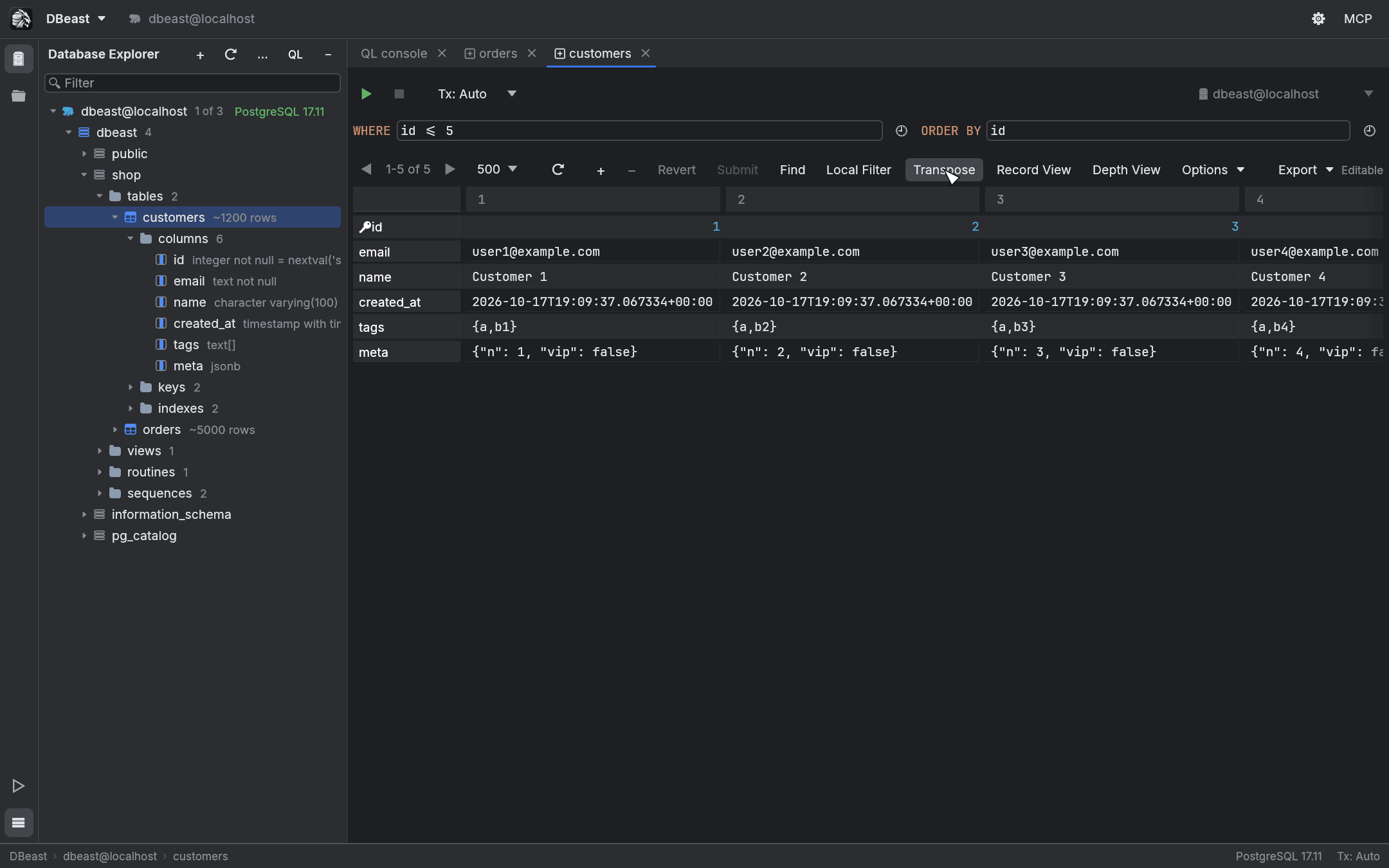
Editing, selection, Find and filters all work in the transposed view. The setting is remembered for each tab.
Record View
Record View shows one record as a list of column and value pairs in a panel to the right of the grid. Open it with:
- Record View on the grid toolbar;
- Show Record View in the cell context menu;
⌘⇧↵while the grid has focus.
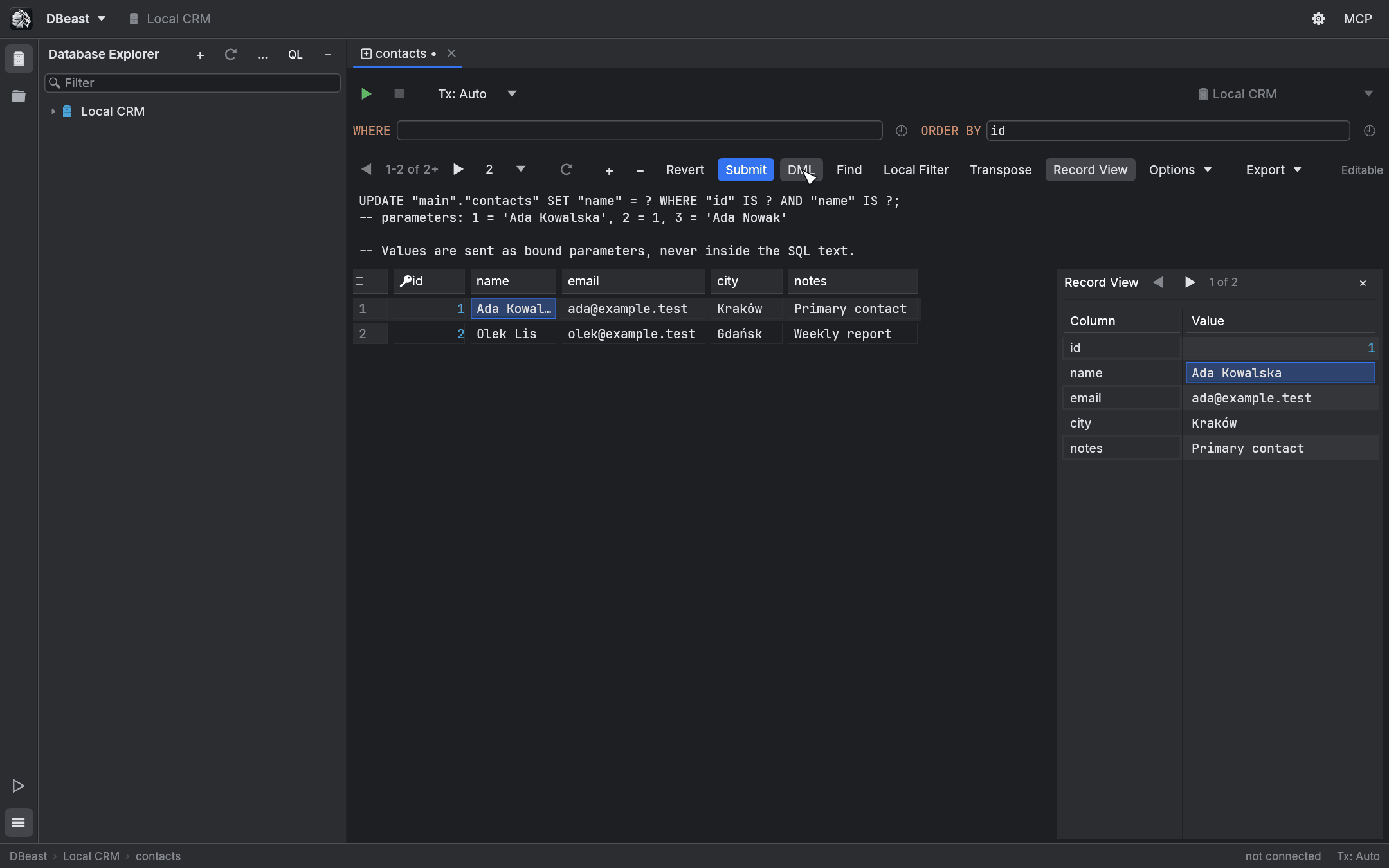
- ◀ and ▶ move to the previous and next record, following the current sort order.
- Press Enter or double-click a value to edit it. Changes join the same pending changes as edits in the grid, with the same colors, DML preview, Submit and Revert.
- The panel stays open after a reload and after restarting DBeast.
Value editor and JSON
Selecting a cell shows its full value in the value panel below the grid. The panel header shows the column name and type, with Edit Value and Copy.
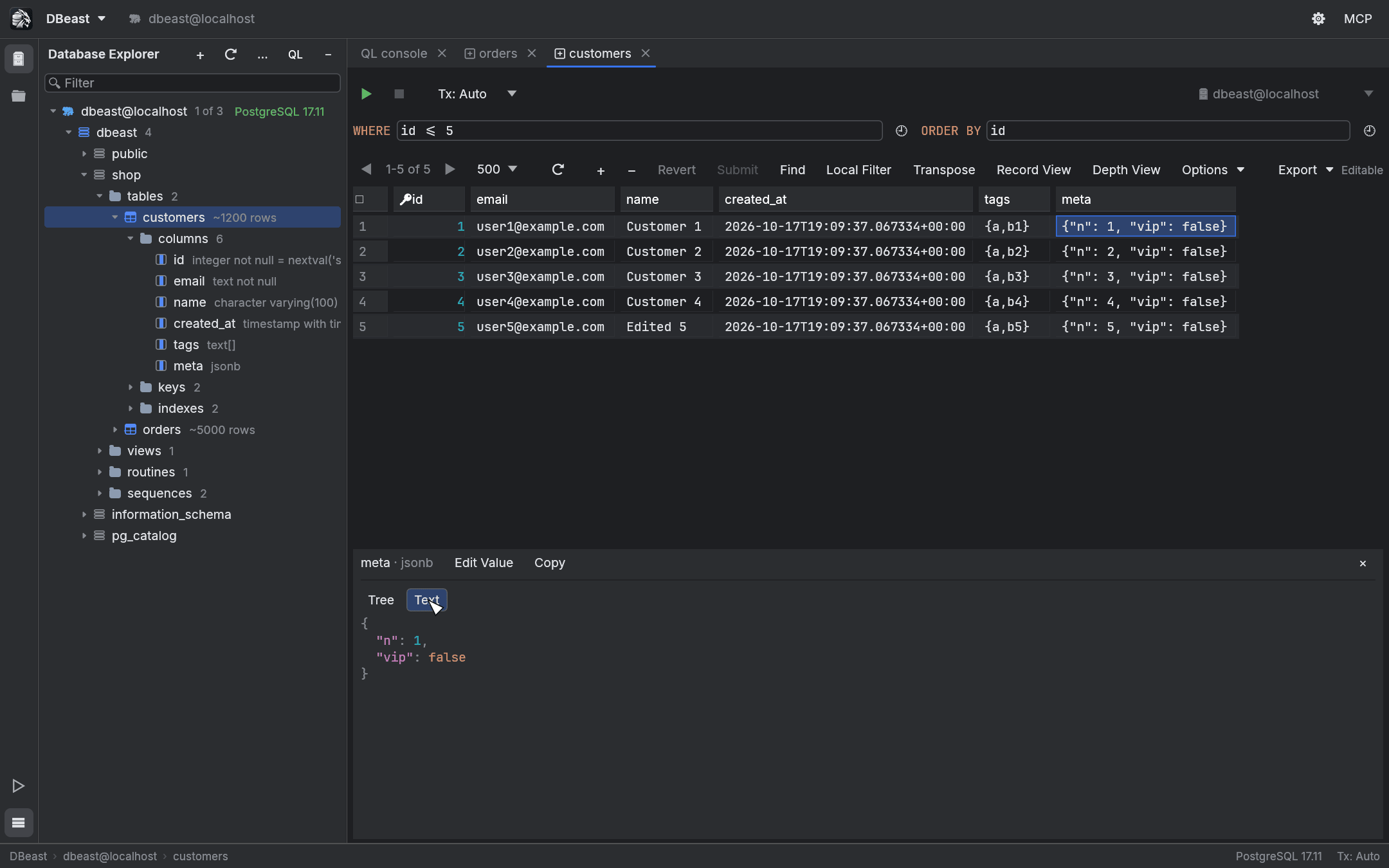
- JSON values can be shown as Tree (collapsible objects and arrays) or Text (formatted with syntax coloring). Keys keep their original order. A tree row shows at most 1024 characters of a key or scalar; Text and Copy give the whole value.
- Values larger than 64 KiB are prepared in the background while the panel shows "Preparing…", and only the lines on screen are laid out, so a multi-megabyte value scrolls like a short one. Long lines of such values are split into rows of about 1 KiB and each row is selected separately; Copy copies the whole value.
- Grid cells draw at most 1024 characters of a value. Copy, Find and Export always use the full value.
- Edit Value opens an edit buffer. Apply Value adds the change to the pending changes, Cancel Value Edit discards it, and Submit saves it to the database. Enter in this field inserts a new line.
- Close the panel with ×, or turn it off with Options > Show Value Editor. Open in Value Editor in the cell context menu, or
⇧↵, shows it again.
Binary values do not have a hex editor yet.
Selecting and copying
| Action | How |
|---|---|
| Select a cell | Click it, or move with the arrow keys. |
| Extend the selection to a rectangle | Shift+click, Shift+arrow keys, or drag. Dragging near the edge scrolls the grid, also in Transpose. |
| Select a column / a record | Click the column name / the row number. |
| Select all cells of the page | ⌘A |
| Copy | ⌘C |
⌘C copies the selected range without headers, in the visible order (after sorting, filtering and Transpose), and includes pending changes. Fields are quoted as TSV when needed, so tabs, new lines and quotes survive pasting. A single cell is copied as its raw value. Copy row (TSV) in the context menu copies the whole row, also including pending changes. To copy the page in another format, use Export > Copy as….
Grid shortcuts work only while the grid has focus, so they never interfere with typing SQL or filters.
Find on Current Page
Press ⌘F in the grid, click Find, or choose Find on Current Page in the cell context menu. The search field is prefilled with the selected value.
- Matching cells are highlighted and a counter shows the current match and the total.
- Cc toggles Match Case and W toggles whole Words.
⌘G/⌘⇧G, or Enter / Shift+Enter in the search field, move to the next or previous match, wrapping around.- Filter rows hides records without a match, also in Transpose and Record View.
Find searches the full text of the fetched page, including pending changes, <null> and <default>. Binary values are searched by their visible hex prefix. Regular expressions are not supported. The pattern and options are kept when you reload or change pages. Find never queries the database and does not change what Export writes.
Note
New rows that you have not submitted yet stay visible under Filter rows even without a match, so that you can finish adding them. Rows marked for deletion are still searched until you submit.
Local column filters
Click Local Filter to show filter icons in the column headers. Click a column's filter icon to open Local Filter For '
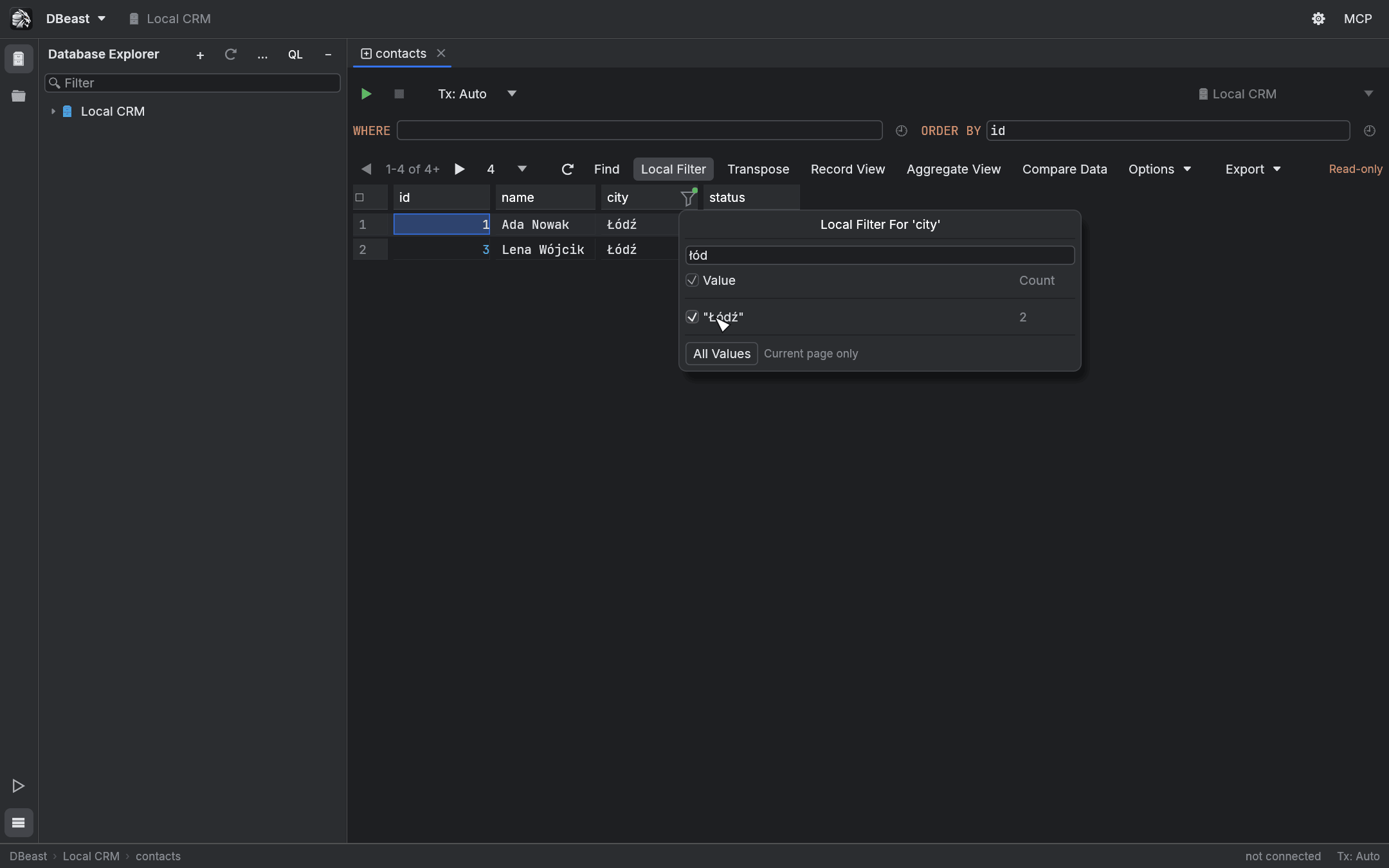
- The popup lists the distinct values on the page and how many times each occurs. Type to narrow the list, and check the exact values you want to keep.
- Conditions on several columns are combined with AND.
- All Values removes the condition for one column. Options > Clear Local Filter For All Columns removes all of them. Turning Local Filter off keeps the settings for later.
Filters work on the fetched page, take pending changes into account, and apply to console results, Transpose and Record View. Find searches only the records the filters let through. New rows stay visible until you finish editing them.
Comparison is exact and local, independent of database collation: types and letter case are distinguished, text values are shown in quotes to tell them apart from NULL or numbers, and decimals keep their written form and scale. When you change pages, selected values are kept for columns with the same name and type. A value that does not occur on the new page still counts as a condition, so the result may be empty. Local filters are not saved between launches.
Aggregate View
Select cells and click Aggregate View, or choose Show Aggregate View in the cell context menu. The Aggregates panel opens on the right, in place of Record View.
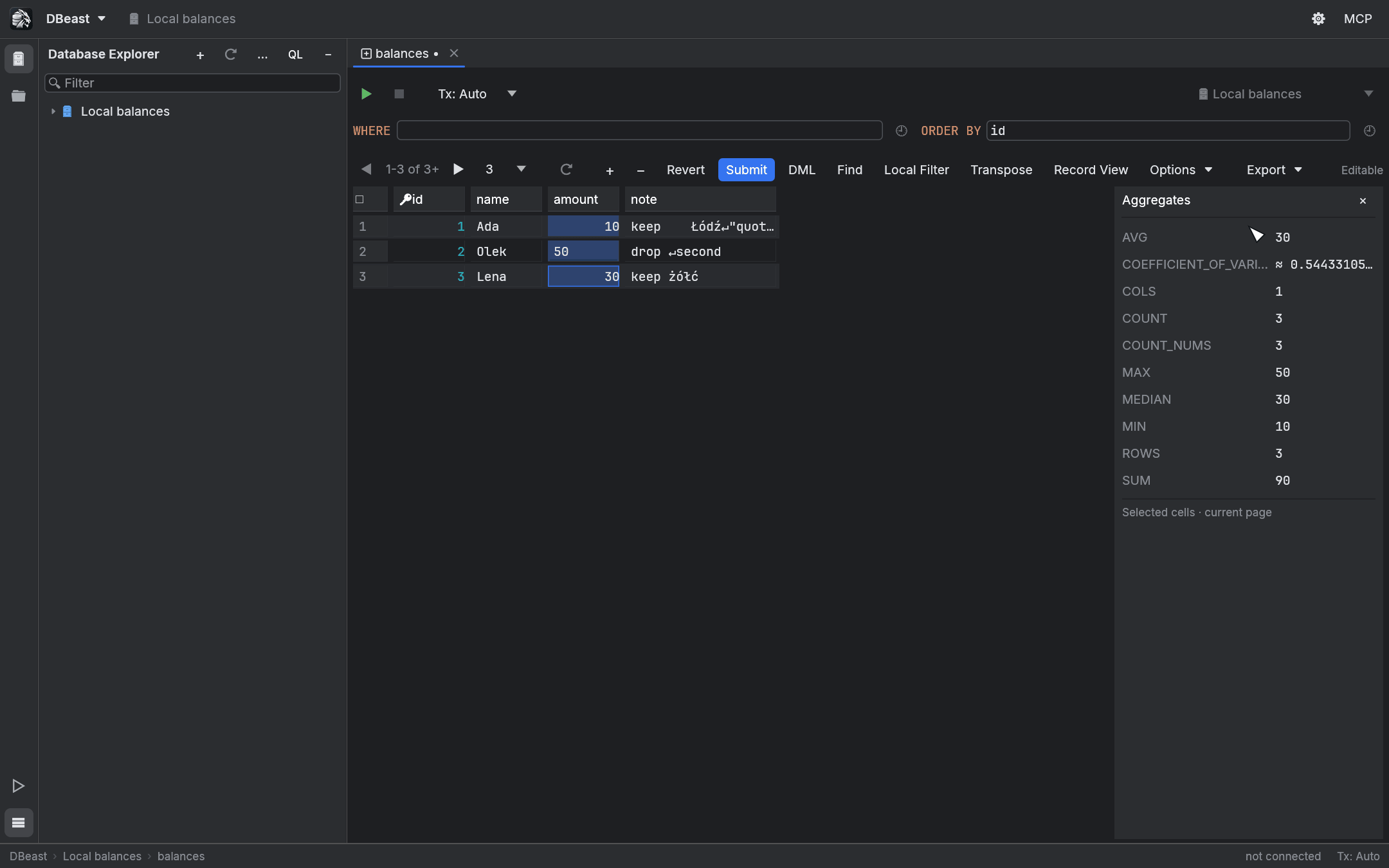
| Aggregate | Meaning |
|---|---|
| AVG | Average of numeric cells. |
| COEFFICIENT_OF_VARIATION | Population standard deviation divided by the absolute value of the average. Not available when the average is zero. |
| COLS / ROWS | Number of columns / rows in the selection. |
| COUNT | Number of cells, including NULL and DEFAULT. |
| COUNT_NUMS | Number of numeric cells. |
| MAX, MEDIAN, MIN, SUM | As named. |
- Numeric aggregates ignore text, boolean and binary values. DBeast does not guess numbers from text.
- Integer and decimal values use exact decimal arithmetic with range and precision checks. Approximate results, such as those involving floating-point numbers, are marked with
≈. - Invalid numbers, NaN, infinity and overflow are reported explicitly instead of showing a wrong result.
- Aggregates cover the current page only. The panel stays open when you change pages and after a restart.
Editing data
You can edit table data in the table editor and, under certain conditions, the results of console queries.
Making changes
- Double-click a cell, or press Enter, to edit it. Enter confirms, Escape cancels.
- + or Add Row (
⌘N) adds a row. − or Delete Row (⌘⌫) marks the selected row for deletion. Clone Row (⌘D) adds a copy of the selected row, including its unsaved changes; primary key columns and columns the grid cannot set are left at their default. - Set NULL and Set DEFAULT in the cell context menu set those values.
- Row shortcuts work on the selected cell when no text field has keyboard focus.
Changed cells are blue, new rows green, and rows to be deleted red and struck through. Before you switch tabs, a cell being edited is added to the pending changes (it is not submitted).
Submitting
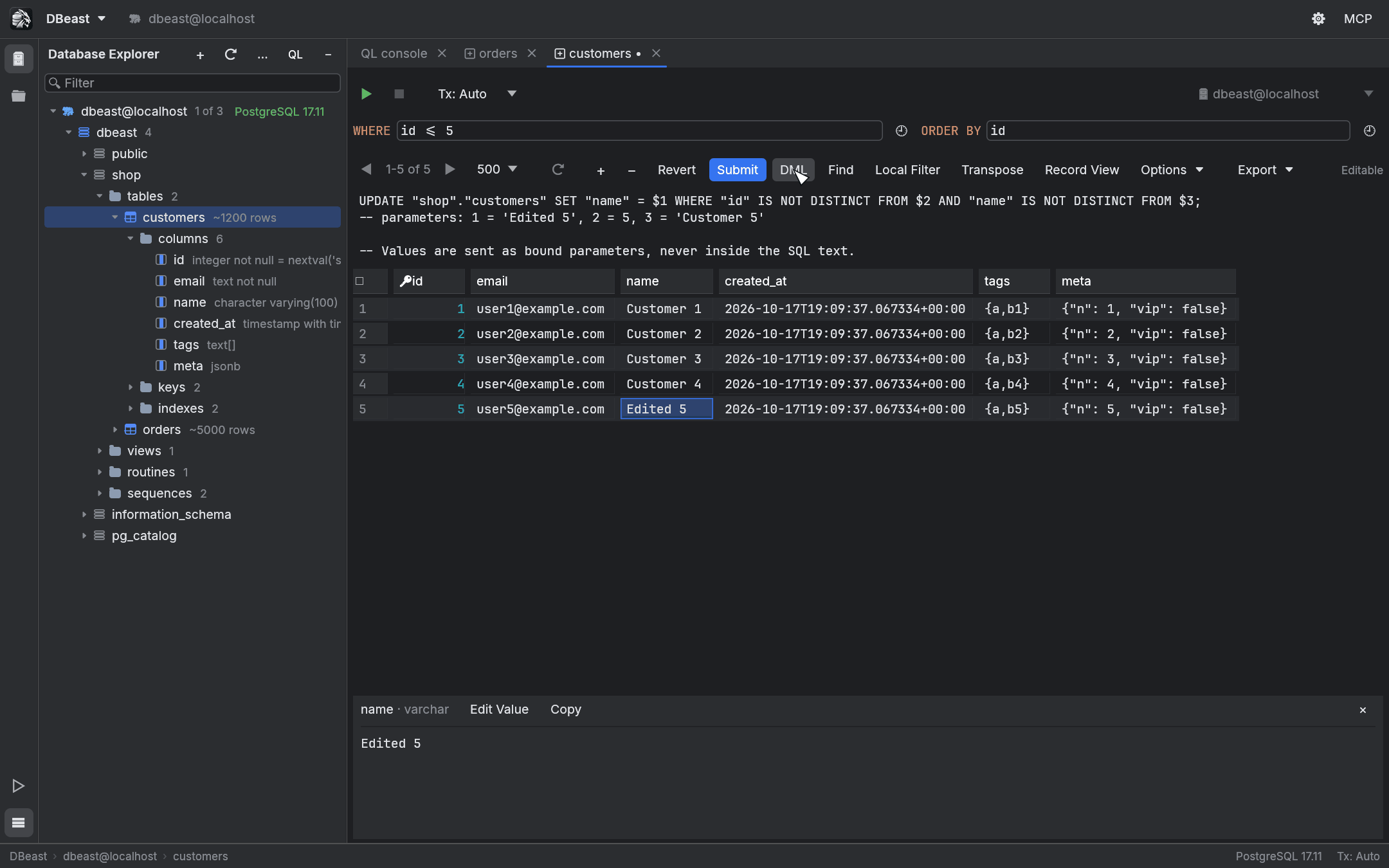
- DML shows the generated
UPDATE,INSERTandDELETEstatements with parameters, and a comment with the parameter values. The preview is for reading only. - Submit, or
⌘↵while the grid has focus, saves all pending changes. - Revert discards them.
DBeast saves changes safely:
- Values are always sent as bound parameters, never inside the SQL text.
- Before saving, the table metadata is checked again.
- A row is identified by its original primary key.
UPDATEalso compares the previous values of the changed cells, andDELETEcompares all comparable columns of the row. If someone else changed the row in the meantime, you get a conflict instead of silently overwriting or deleting their change. For columns that cannot be compared in SQL (for examplejson, arrays or PostGIS types), only the key detects conflicts. - Each statement must affect exactly one row. Any error, conflict or uncertain outcome rolls back the whole batch; inside an open transaction this uses a savepoint, so your earlier changes in the transaction are kept.
- In Tx: Manual mode, a successful save stays in the open transaction until you commit.
- If the connection is lost during a save, DBeast does not retry. The result becomes read-only and keeps your values for reference until you verify the database with a fresh query.
- Stop (
⌘F2), Disconnect or closing the console also stop a save, including one that waits for the session or for a row locked by another session. Changes are never committed after Stop: DBeast stops before the next statement and rolls back to the savepoint. A statement that is still running after a short moment gets a cancel request; the session is then closed, which also rolls back an open manual transaction, and the Output log says so. If the database does not answer within 5 s, the session is closed as well. Only a Stop whileCOMMITis waiting for its answer leaves the outcome unknown.
When a table is read-only
- A table without a primary key is read-only, because identical rows cannot be told apart. The reason is shown in the grid. Exception: an SQLite table with a hidden
rowid(including an imported CSV file) gets an extra read-onlyrowidcolumn and is identified by it. - MySQL tables without transactions (for example MyISAM) are read-only, because a failed batch could not be rolled back.
- A table tab restored from a previous session shows the saved rows without connecting. The first edit reloads the current page, and you can then edit the fresh result.
Editing console results
A console result is editable when it comes from a simple SELECT on one table and contains the table's complete primary key. You can then update cells and use Add Row, Clone Row and Delete Row, with the same safeguards as the table editor.
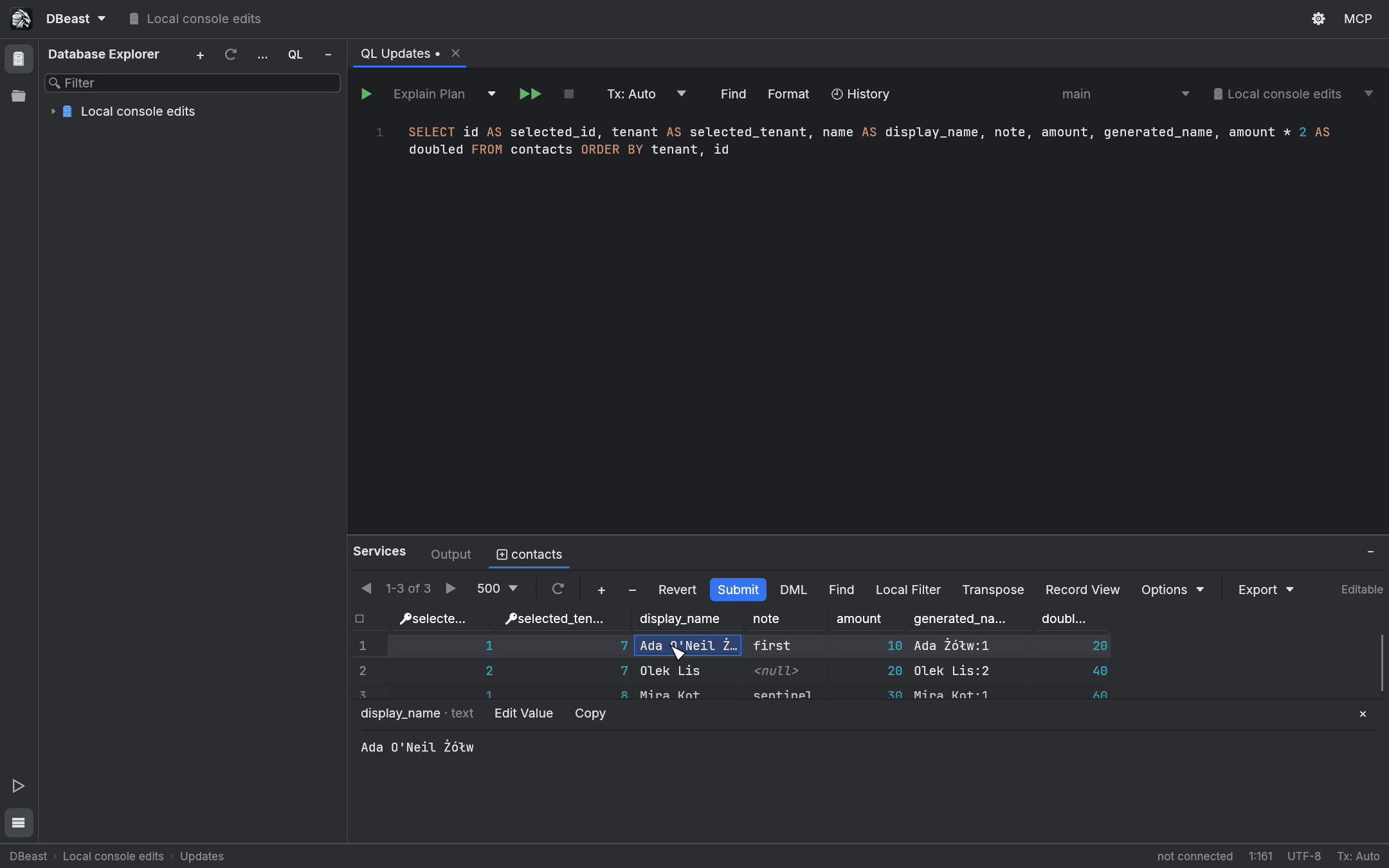
- Column aliases and column order do not matter: the physical column names come from the driver protocol and the database catalog.
- Computed and generated columns, and values without a lossless representation, are read-only.
- A missing or incomplete key, or an ambiguous result, makes the result read-only with a visible reason.
- Changing the console's data source, schema or connection revokes write access to older results.
- Results restored from a session must be executed again before editing.
Out of scope for now: joins, CTEs, aggregates, compound queries and function calls in the select list, virtual keys, choosing the target table manually, and typing SQL expressions into cells. PostgreSQL supports regular tables without inheritance or partitioning; MySQL supports permanent InnoDB tables only; SQLite also supports qualified tables of attached databases, but not virtual tables.
Related Rows
Related Rows follows foreign keys from the selected record. Open it with:
- Go To > Related Rows in the cell context menu;
F4while the grid has focus;- Find Action.
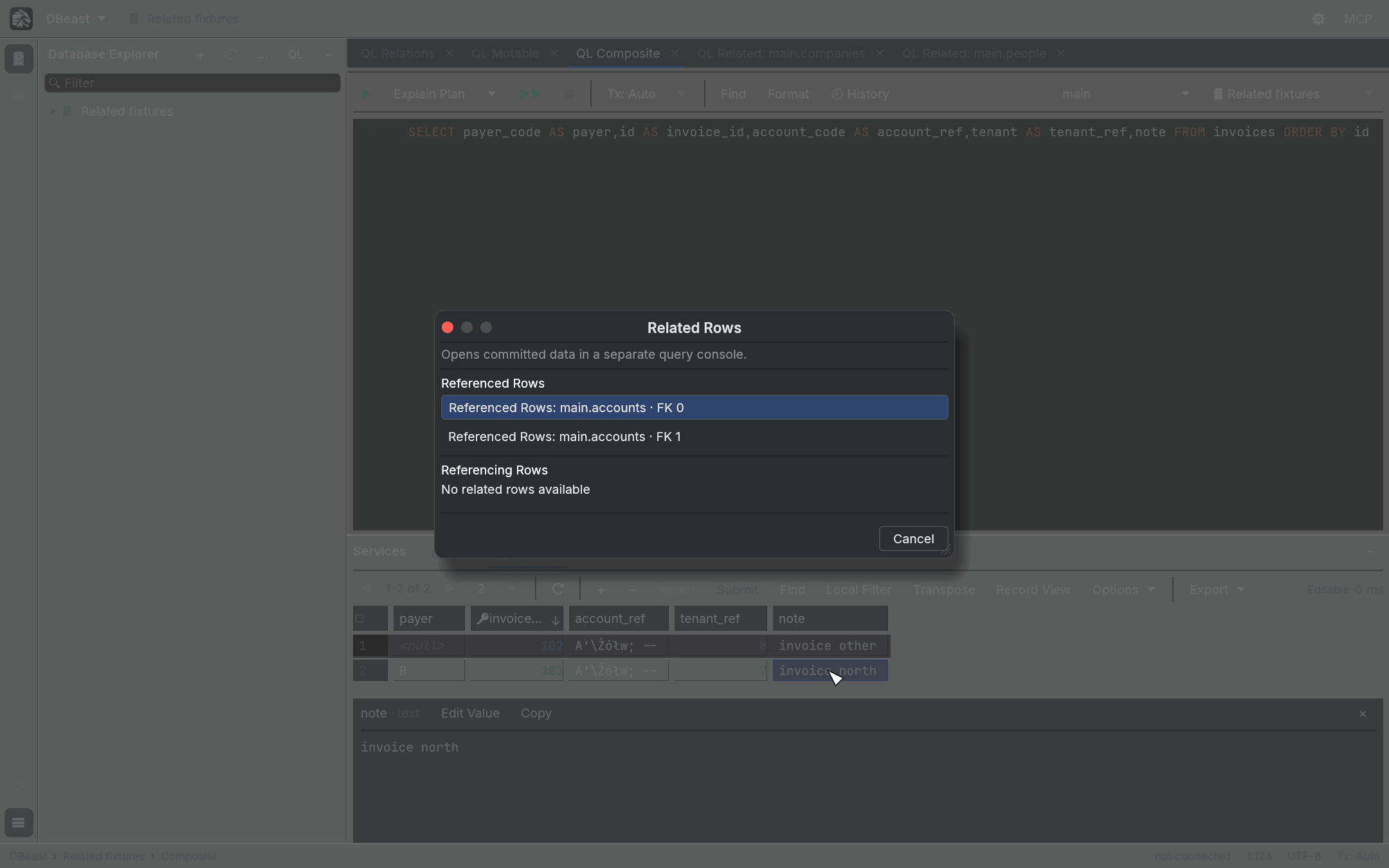
The chooser lists Referenced Rows (records the current row points to through its foreign keys) and Referencing Rows (records that point to the current row). It is always shown, even when there is only one relation. Use the arrow keys to choose, Enter to open, and Escape to close.
The selected relation opens in a new console named Related: schema.table, with parameterized SQL. Execute, Reload, paging and export keep the same typed values. Related Rows results are read-only and show committed data from a separate session.
Things to know:
- All columns of a composite key are used, in catalog order, including foreign keys that reference a UNIQUE constraint. Aliases in the
SELECTdo not affect the mapping. - The source result can be read-only and does not need its own primary key, but it must contain the complete, exact values of the chosen relation.
NULLvalues, a missing part of the key, or unsubmitted changes are reported as a reason. - Foreign keys are read only when you invoke the action, in the background, and cached per session.
- Stop, Disconnect and closing the console also end a related read that waits for a session or a locked table. If the read had to be cancelled on the server, its session is closed.
- Each page is limited on the server: the console's SQL is run with
ORDER BYon the primary key of the shown table (for parent rows without a primary key, the referenced key) andLIMIT/OFFSETfor the page, so later pages neither repeat nor skip rows and the database does not send the rest of the relation. - Export of a Related Rows result streams rows to the file in batches. The column origins of the query are checked before the first row is written, and the target file is replaced only after the whole export succeeds.
- Not supported yet: an open transaction in the source console, temporary tables, SQLite attached and in-memory databases, imported file sources, virtual foreign keys, inline preview, and navigating from several records at once. SQLite foreign keys appear as
FK n, because SQLite does not return constraint names.
Compare Data
Compare Data on the grid toolbar (also in its menu and in Find Action) compares two open results.
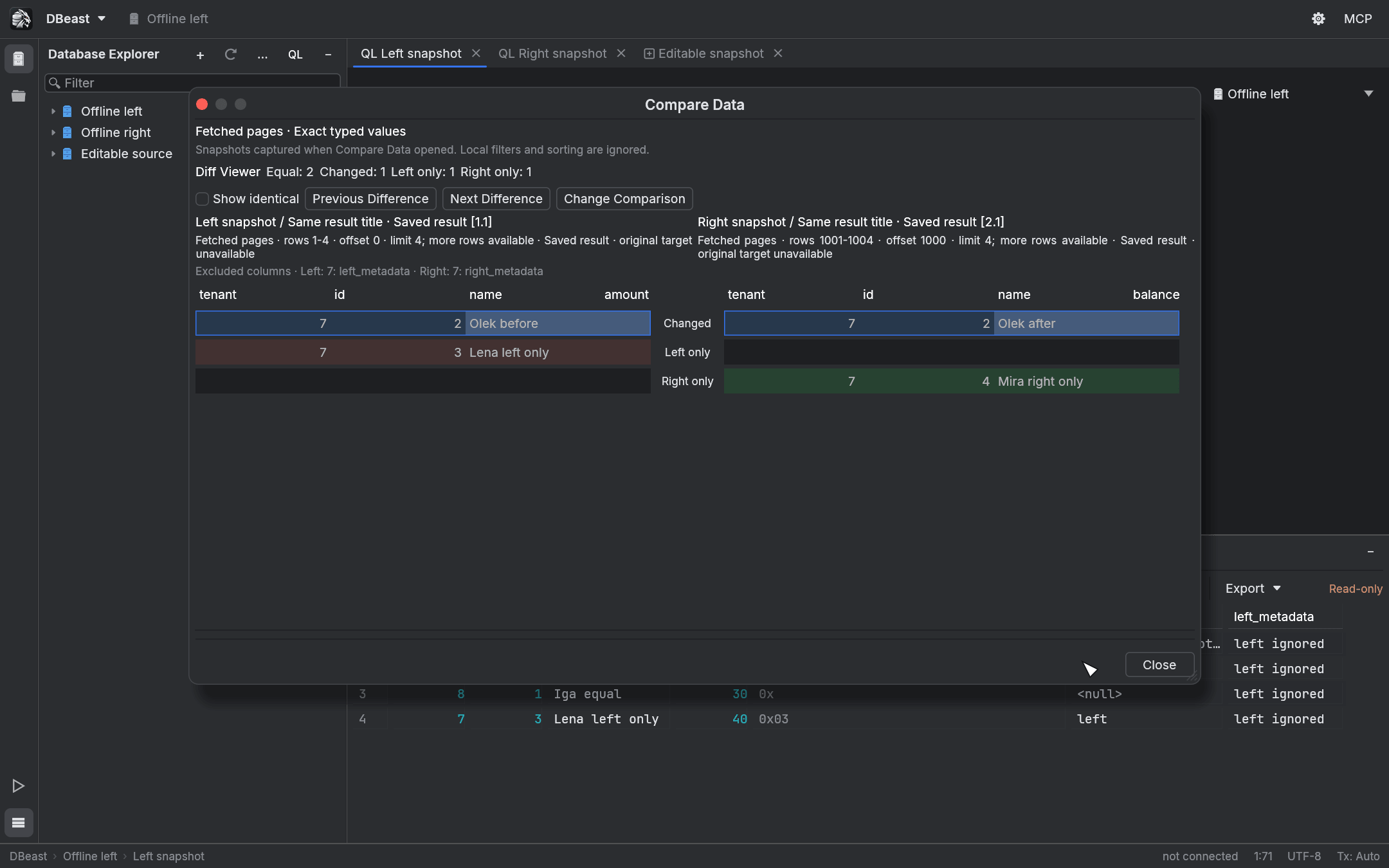
- Choose the two results. The dialog shows their sources and fetched ranges.
- Check the column mapping. Columns are matched by exact name; you can change the mapping, and excluded columns are listed.
- Choose the key columns that identify a row. A composite key is supported.
- The Diff Viewer shows both sides with synchronized scrolling, highlights changed cells, and counts Equal, Changed, Left only and Right only rows. Show identical includes unchanged rows; Previous Difference and Next Difference jump between changes; Change Comparison returns to the setup.
How the comparison works:
- The comparison uses fetched pages: a snapshot of each result taken when Compare Data opens, independent of local sorting and filters. "Left only" means the key is missing from the other fetched page, not from the whole table.
- It works with read-only results and results restored from a session. Submit or revert pending edits first. Compare Data never writes data and never fetches more rows.
- The key must be unique on both sides, without
NULLor NaN. - Values are compared by type and full content, without database collation:
1,1.0and the text"1"are different, and decimals keep their written form and scale. Floating-point zeros of either sign are equal, and NaN values outside the key are treated as equal. - Tolerances, column insertion detection and data synchronization are not available. Comparisons are not saved between launches.