Files
DBeast can open data files directly, without adding a permanent data source. An opened file becomes a temporary data source: you browse it in the grid, query it in a SQL console, filter, transpose and export it like any database table.
Shortcuts use macOS symbols; on Linux and Windows, ⌘ is Ctrl.
Supported files
| Format | Details |
|---|---|
| CSV and TSV | The separator is detected automatically: ,, ;, tab or |. |
| Data Package | A datapackage.json file with local CSV resources. Each resource becomes a separate table. |
| SQLite | Files with the .sqlite, .sqlite3, .db or .db3 extension. |
Open a file
Use any of these:
- double-click the file in the Files tool window;
- click the Open File… button in the Files tool window header;
- choose Open File… in the DBeast menu.
The file opens as a temporary data source. For a CSV or TSV file, its table opens in a new tab right away; for a Data Package, the first table opens. A SQLite file opens a new query console. Opening a file that is already open switches to its tab. A temporary source is not written to your configuration and disappears when you close the file.
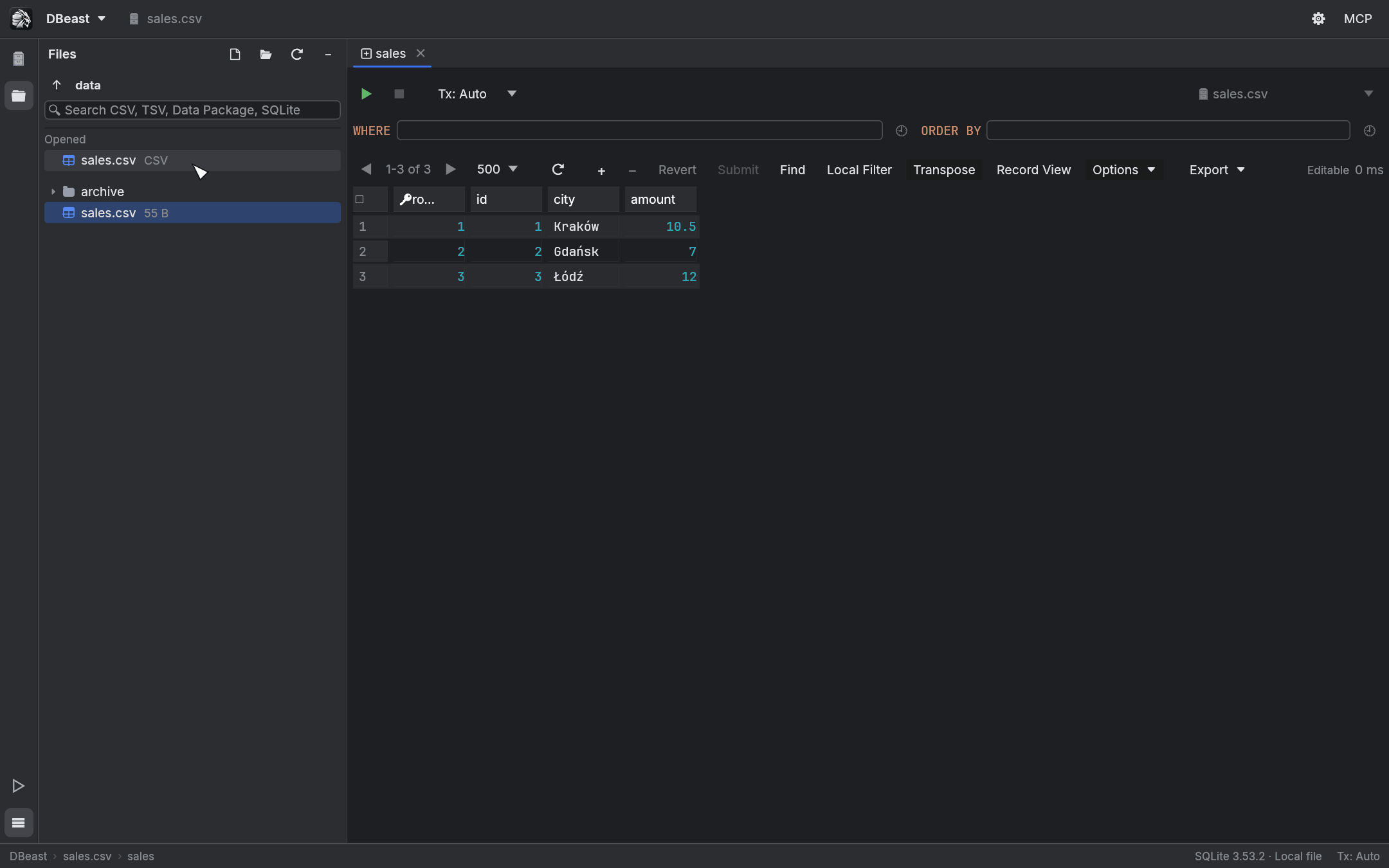
To close a file, right-click it in the Opened section of the Files tool window (or the source in the Database Explorer) and choose Close File. If the file has unsaved changes or a running operation, DBeast warns you first, the same way as when closing tabs.
The Files tool window
Press ⌘2, or click the folder icon on the tool window bar, to show the Files tool window. It shares the left panel with the Database Explorer.
- The header buttons are Open File…, Open Folder… (choose the folder to browse), Refresh and − (Hide).
- The ↑ button goes to the parent folder; the current folder name is shown next to it.
- The Opened section lists files that are currently open as data sources. Click one to switch to it.
- The tree below shows the current folder and lists only supported files. Folders and file sizes are read in the background, so a large or slow folder shows a spinner instead of stopping the window; Refresh reads them again.
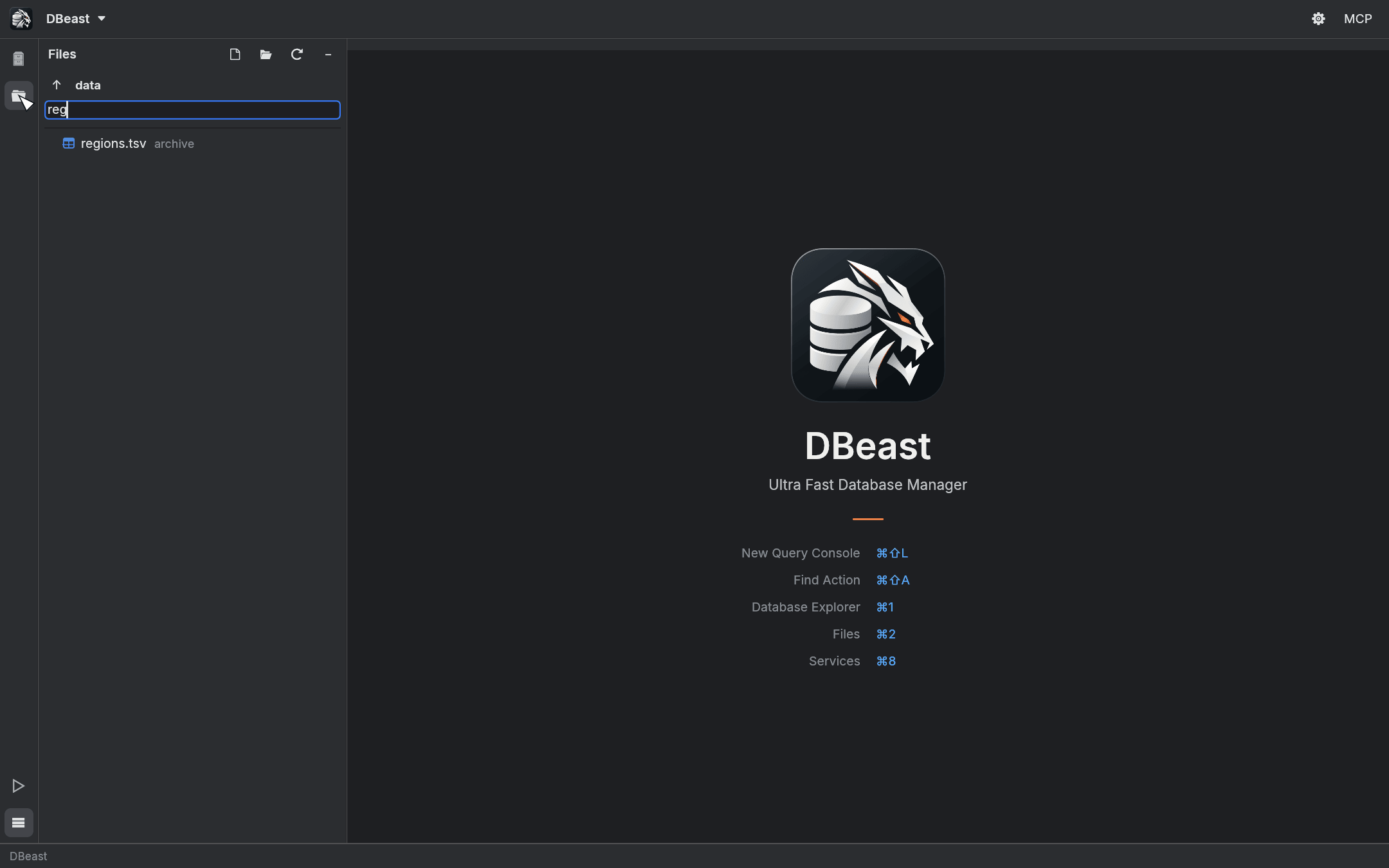
Type in the search field (Search CSV, TSV, Data Package, SQLite) to find files by name in the folder and its subfolders. The search starts when you pause typing, runs in the background and skips hidden folders, node_modules and target. Typing further stops the previous search.
Working with CSV and TSV files
A CSV or TSV file is loaded into a temporary SQLite database. As a result, every grid and console feature works on it: sorting, Find, local filters, Transpose, Record View, SQL queries and export.
You can also edit the data. Changes you commit, either with Submit in the grid or with UPDATE, INSERT or DELETE in a console, are written back to the file:
- the original separator and row order are kept;
- unchanged cells are written exactly as they were.
Column types are inferred conservatively. A column becomes numeric only when every value converts back to exactly the same text, so values such as 007 or 1.50 stay text and are never altered.
Each row is identified by the hidden SQLite rowid, which appears as an extra read-only column in the grid. See Editing data.
Working with SQLite files
A SQLite file is opened directly, without copying. Everything you can do with a configured SQLite data source works the same way. To keep a SQLite database in your project permanently, add it as a data source instead (see Data sources).
Related topics
- Import and export: import CSV files into a database table, or export results to files.
- Results grid: browsing and editing data.